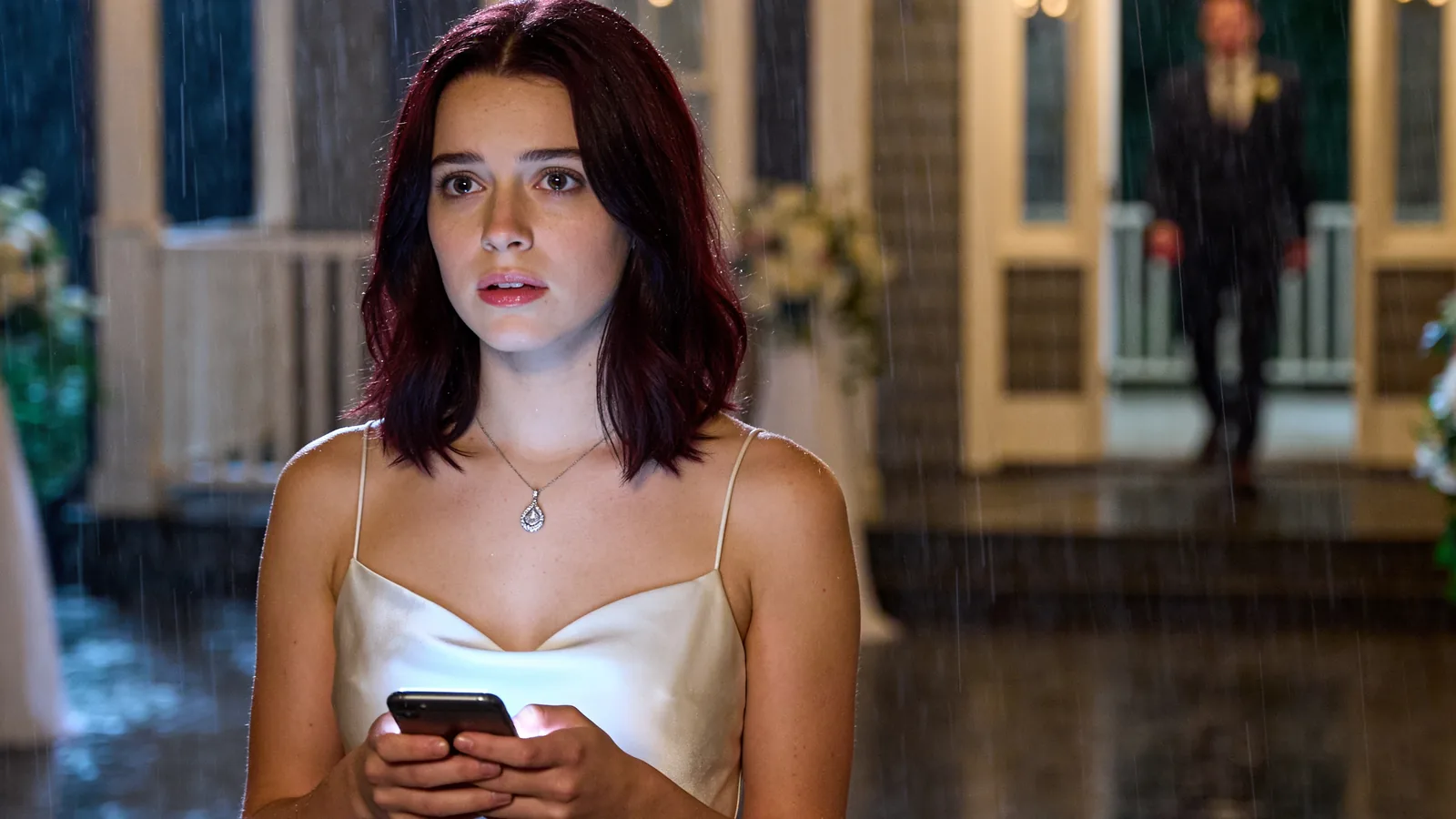
Open on a secret, a decision, a reunion, or a problem that needs an answer.
Script-led short drama production
AI Short Drama Generator
Turn your script into a short drama, step by step. Plan episodes, develop characters and scenes, then create and refine the video shots that tell your story.
Start with script import in your LumeArt project. Create and review video shots later, as part of the production process.
Unable to continue. Please try again.
Storytelling tips
A Short Drama Is More Than One Video
A compelling short drama needs a story that develops across scenes. Plan the conflict, the characters, and the turning points before generating individual shots.
Keep character references, wardrobe, relationships, and visual direction available for the next scene.
Direct one moment at a time: an arrival, discovery, confrontation, reaction, or escape.
Use the strongest result as a reference when the story needs its next scene or cliffhanger.
A practical creation flow
How to Make an AI Short Drama
Start by preparing your script. Use your LumeArt project to organize episodes, develop visual references, and produce shots. Review each stage and assemble the final story in your editing software.
- 01
Prepare and Import Your Script
Write your story with characters, dialogue, and scene descriptions. Import the script into your LumeArt project; a single video prompt is not a substitute for a complete script.
- 02
Organize Episodes and Scenes
Split the imported script into episodes, review the divisions, and confirm the content. Plan the scenes and story developments within each episode.
- 03
Develop Characters and Visual References
Prepare character appearances, locations, and props for your scenes. Reuse clear references and check the results to help maintain visual continuity.
- 04
Create Storyboards and Video Shots
Break scenes into shots. Plan framing, actions, and camera movement, then choose suitable models to generate and refine each shot. Video generation is one stage of the project, not the entire short drama.
- 05
Edit Your Episodes
Bring the selected shots into your editing software. Arrange the sequence, add or adjust dialogue, voiceover, music, and subtitles, and review the finished episode before sharing it.
Story starters
Explore Short Drama Directions
These AI-generated concept images and story ideas are starting points for your own short drama, not finished video episodes.
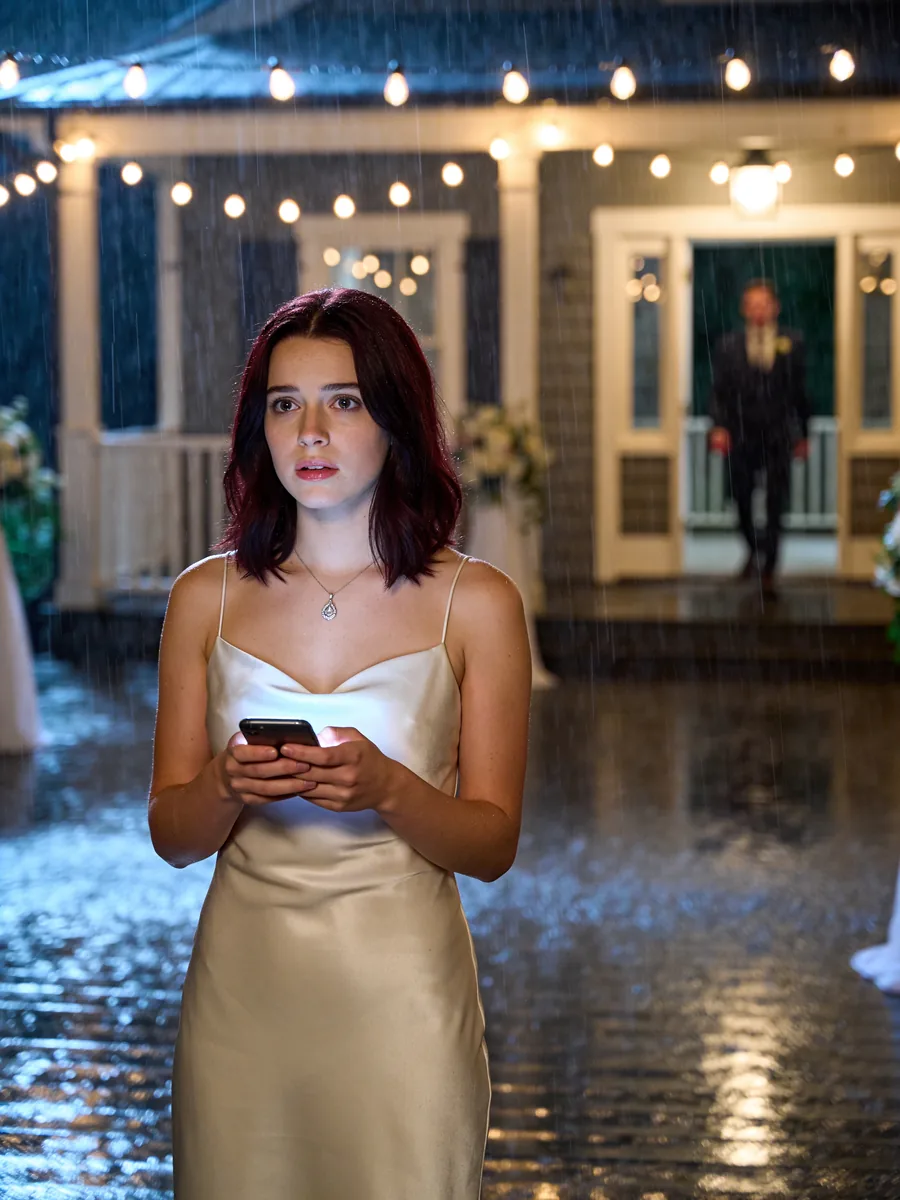
Romance · Opening Concept
The Message He Was Never Meant to Read
One unread message puts two former lovers in the same room before the wedding begins.
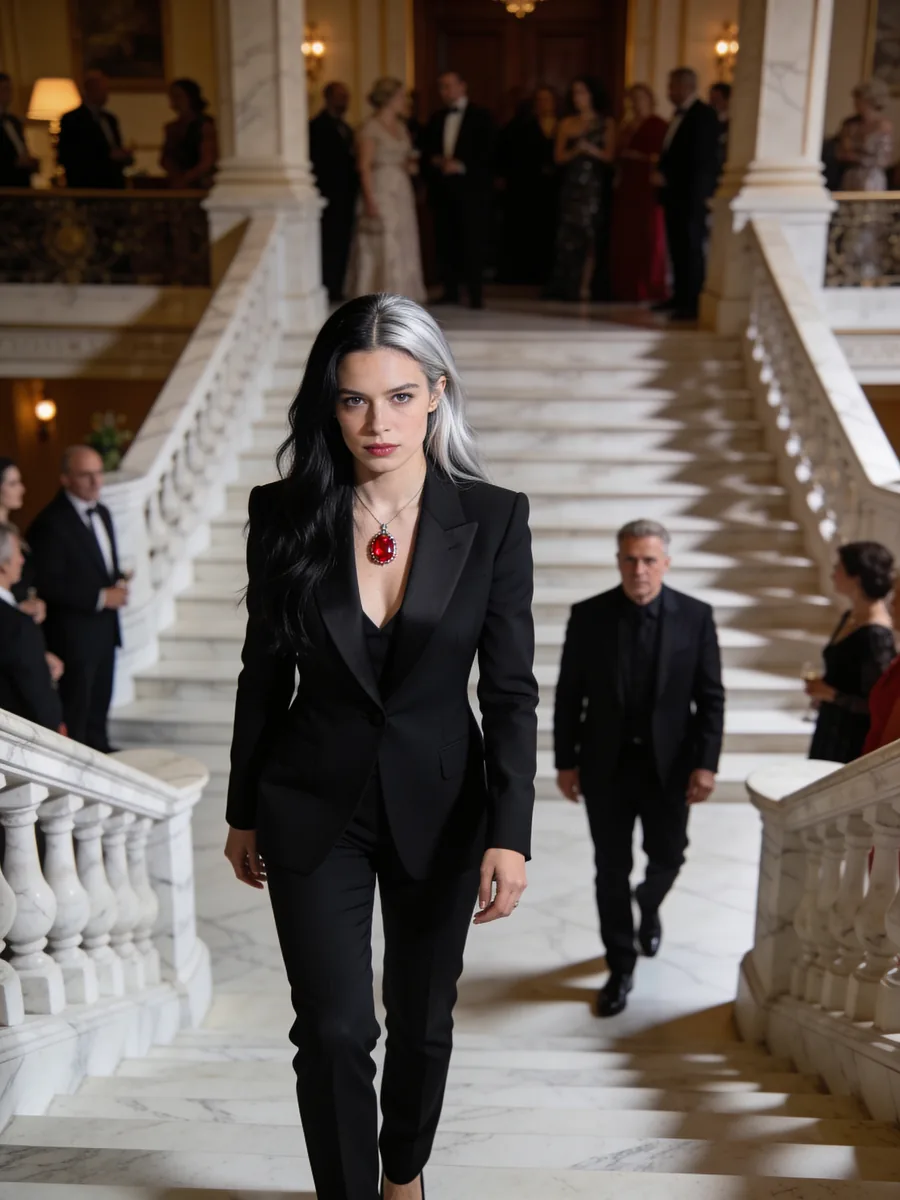
Revenge · Opening Concept
She Returned with a New Name
Years after being blamed for a crime she did not commit, a woman walks back into the family that erased her.
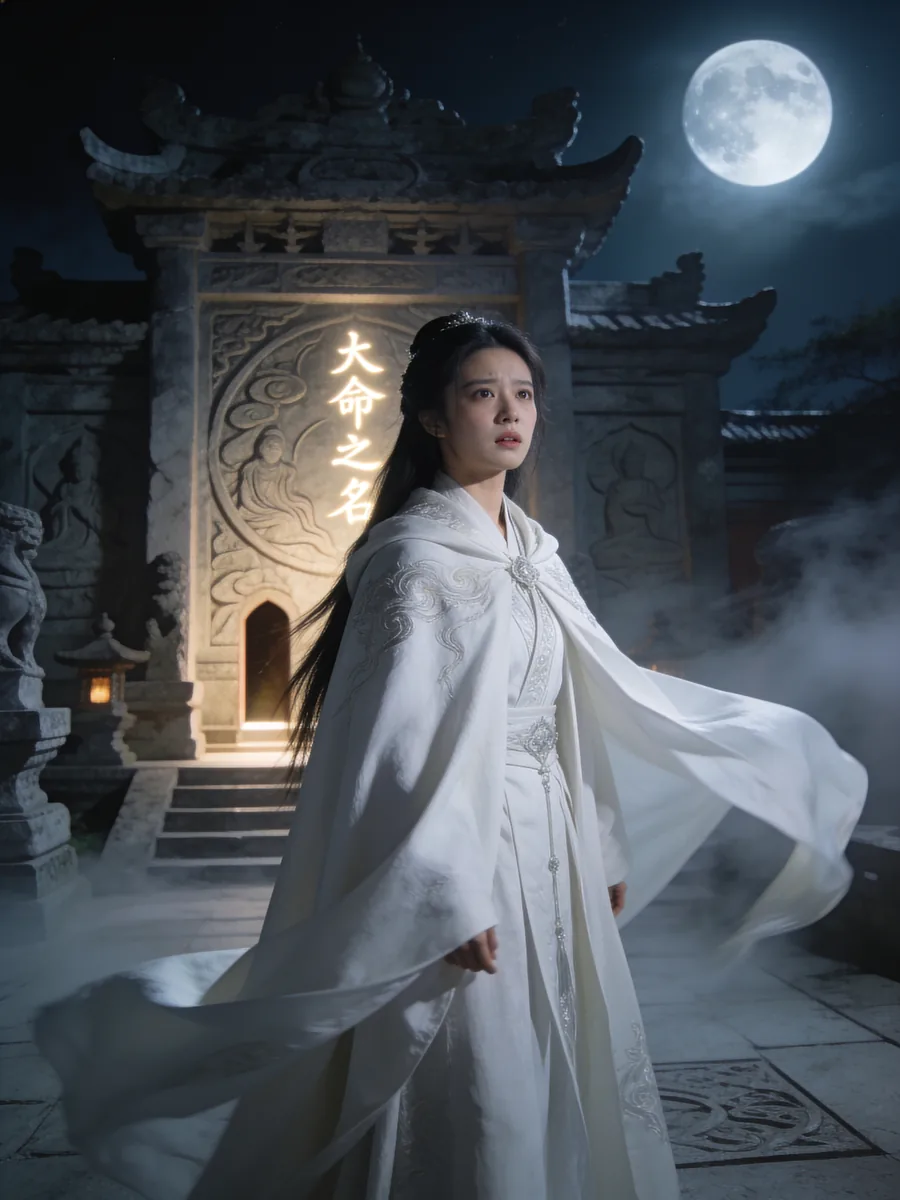
Fantasy · Opening Concept
The Last Heir of the Moon Kingdom
A hidden heir learns that the moonlit shrine remembers every ruler it has lost.
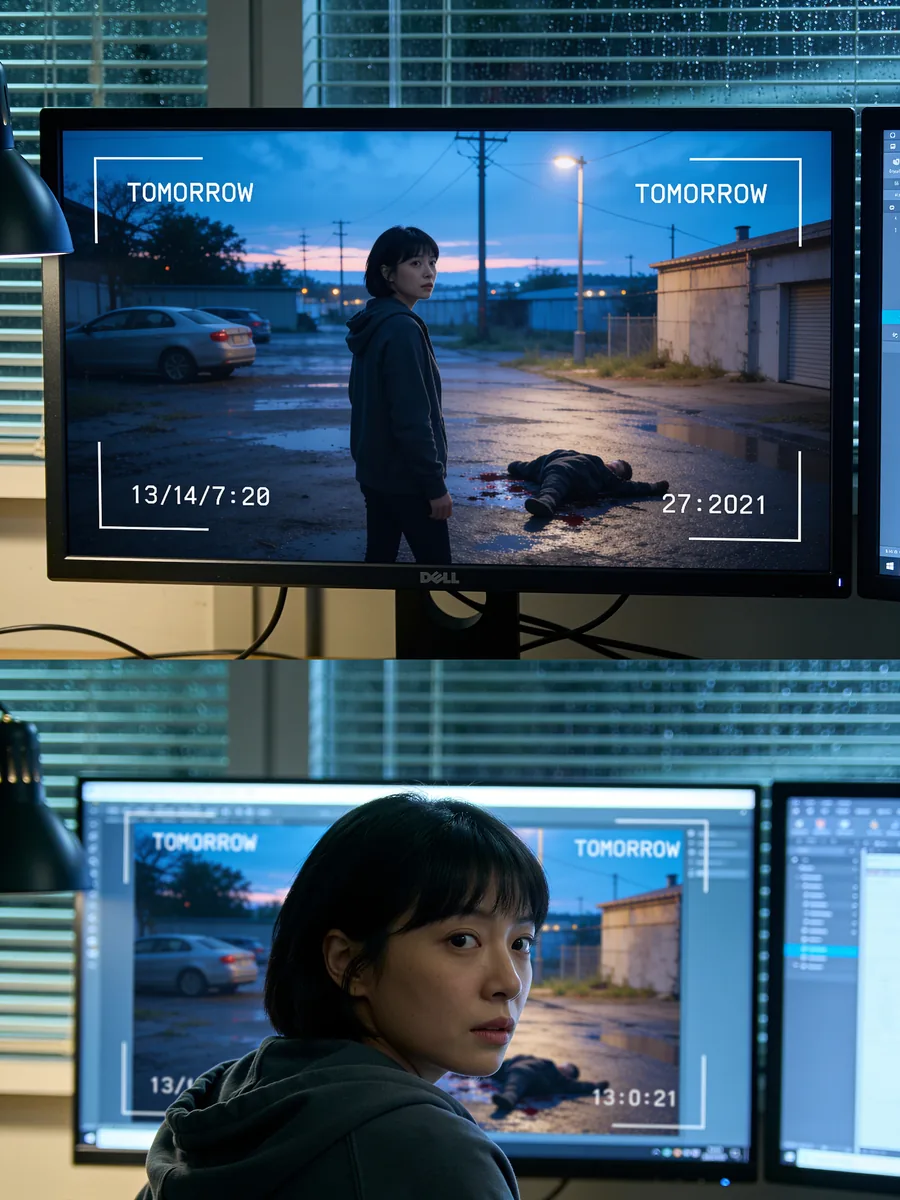
Mystery · Opening Concept
The Camera Recorded Tomorrow
A night-shift editor finds footage of a crime that will happen at sunrise—and recognizes herself in it.
Develop Your Story, Shot by Shot
Connect your shots through the characters, setting, and events. Review each result and adjust the next scene so the story stays easy to follow.
Start with a Story Idea or Script
Start with an outline, a dialogue scene, or a short script. Break it into scenes and describe what you want to see in each shot.
Develop Recurring Characters
Use clear references and repeat the character details that matter. Review each result because visual consistency can vary between generations.
Keep the World Connected
Return to familiar locations, lighting, props, and story rules so each episode feels like part of the same world.
Focus on One Key Scene
Give one scene a clear purpose: reveal information, change a relationship, raise a risk, or end on a question.
Review the Result and Continue
Keep the strongest shot, revise the weak one, and use the approved direction to guide the scene that follows.
Choose a Video Model for the Scene
Compare the currently available video models in the generator and select the one that best fits the motion and reference needs of the scene.
AI Short Drama Generator FAQ
Plan your short drama from script to final edit.
What is an AI short drama generator?
LumeArt supports a project-based workflow for creating short dramas: begin with a script, organize episodes, prepare visual references, and produce individual video shots. A finished drama requires multiple steps, creative decisions, and editing, not one generation request.
Do I need a script before starting?
Prepare a script with characters, dialogue, and scene descriptions before importing it. If you only have a story idea, develop it into a script first. The button on this page opens script import, not an automatic story-writing or video-generation task.
How do I divide a script into episodes?
Import your script, choose the available splitting method, and review the episode boundaries and content before confirming. Check that each episode has a clear progression and connects with the next.
How do I keep characters consistent across scenes?
Use consistent character references, clothing, locations, and lighting across related shots. Review the generated results and adjust or regenerate shots when details drift. References help continuity but do not guarantee identical results.
Do I still need to edit the final video?
Yes. Generated shots are production materials, not a finished episode. Assemble them in your editing software, adjust timing and sound, add subtitles as needed, and review the final result.
What happens when I click Start Making a Short Drama?
If you are signed out, you will be asked to sign in first. You will then enter script import in your LumeArt video project. Clicking the button does not submit a generation task or automatically turn an example image into a drama.
Ready to Start with Your Script?
Open your project to import a script and organize episodes. You choose when to begin generating shots and confirm the model settings and credit usage there.
Start Making a Short Drama